
Research Equipment Connectivity Diagnosis
Last Updated: January 25, 2026
Troubleshooting steps for a connectivity issue between the specialized research equipment and the data storage system.
Incident Summary
The connectivity issue between the research equipment and the data storage system has the risk of causing research disruptions and data loss or data corruption. Below is a streamlined documentation of how we solved the issue. The following systems are involved in the issue:
- Specialized research equipment
- Data storage system
- Network infrastructure
Date Reported: January 20, 2026
Date Resolved: January 23, 2026
Observations of Symptoms
Faculty members reported intermittent connectivity issues between the specialized research equipment and the data storage system. The symptoms included frequent disconnections during data transfers, slow data transfer speeds, and occasional error messages indicating network timeouts. These issues were impacting the ability to conduct experiments and store research data reliably.
Investigation
The first step in the troubleshooting process is to learn more about the problem symptoms. To effectively troubleshoot, the following information were acquired before any troubleshooting began:
- Equipment model and firmware version
- Operating system
- Data storage system
- Connection method / protocol
- System error logs
Next, we inquired about the details of the issue with faculty members that reported the issue:
- Error codes / messages
- Constant or intermittent
- When they started experiencing the issue
- Recreate the symptoms
- Recent changes to the system
Findings
We gathered the following information during the investigation:
- Faculty members that reported the issue were using the same research equipment and data storage system
- The problem was intermittent, there were frequent disconnections
- Error messages referenced network timeouts
- No recent hardware changes or upgrades but the issue started recently
As the issue started occurring recently, we had to determine what has changed and triggered the problem. We started to narrow down the scope and attempted to isolate the problem in the following steps.

Hardware
As the first step of the diagnosis, we examined the hardware components in the system to check for any worn out ports and cables that have come loose. All cables were securely connected. We looked for visible damages on the equipment and tested both the power supply unit and the cooling system. All systems were functioning properly during our testing.
We then logged into the workstation and confirmed that there is sufficient disk space available in the data storage system. We proceeded to run a scan of the hard drives for failing sectors. The scan came back with no issues detected.
Software
Next, we moved on to the software diagnosis. We reviewed the software and operating system configurations on the workstation and verified that they were both up to date with the vendor's specifications. We examined the system logs for any changes and modifications made to the system around the same time as when the reported issue started. We did not discover any signs of software incompatibility or recent changes that could have led to the problem.
We then consulted the vendor's official knowledge base for any known issues or solutions related to the problem. No similar issues were found but there were references to network interference on connectivity issues. We reproduced the problem with a new user profile and ruled out the possibility of software interference, therefore, we moved on to network diagnosis.
Network
For the network diagnosis, we navigated to the network settings on the workstation and checked that the ports required are configured properly according to the vendor's specifications. We reviewed digital certificates and firewall rules and ensured they were all up to date and not interfering with connectivity.
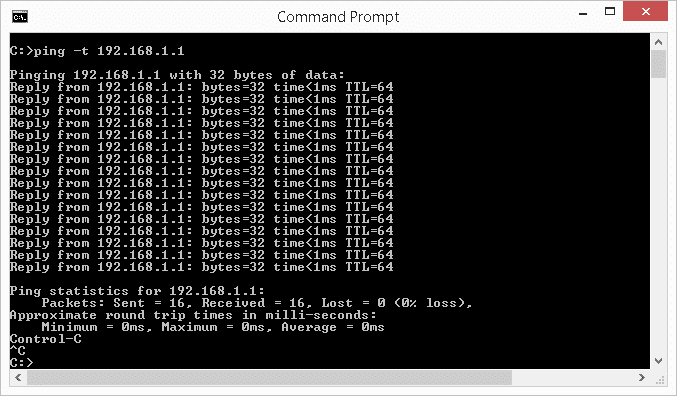
We then performed a series of connectivity tests using tracert and ping commands in the Command Prompt to monitor trends of latency and identify potential congestions between the research equipment and the data storage system. We observed high packet loss and latency during these tests, indicating a network level issue.
We carefully reviewed logs from network devices and did not find any recent changes made to the network infrastructure. However, while looking through the network device list, we discovered that the research equipment was set to use a static IP address. The same IP address is also assigned to another new workstation on the same network, creating an address conflict and the intermittent connectivity problems.
Resolution
After isolating the source of the connectivity issue, we updated the IP address of the research equipment and assigned a new unique IP address outside the range of addresses in use. We conducted further tracert and ping testing to ensure reliable performance and that no further interferences can be observed.
After resolving the connectivity issue, we updated the faculty members with the findings and provided instructions on best practices of network configuration to avoid similar problems in the future. We also scheduled a regular checkup of the network performance to monitor and alert us of any issues immediately.
Relevant Incidents
Documentation of similar past incidents.